bench51 — an 8051 assembler, simulator & debugger










A small, Keil µVision-style IDE for the Intel 8051. Write assembly in the editor, build it, inspect the listing and Intel HEX output, then run, pause and single-step the program while watching registers, SFRs, memory, ports, timers, interrupts and the serial port, all in a window laid out like µVision.
Like Emacs, it also runs in a terminal: the same assembler and simulator
come with a TUI (bench51) for SSH sessions and terminal setups.
Built in Rust with egui and ratatui. It is a learning tool, not a cycle-exact replacement for a vendor simulator.
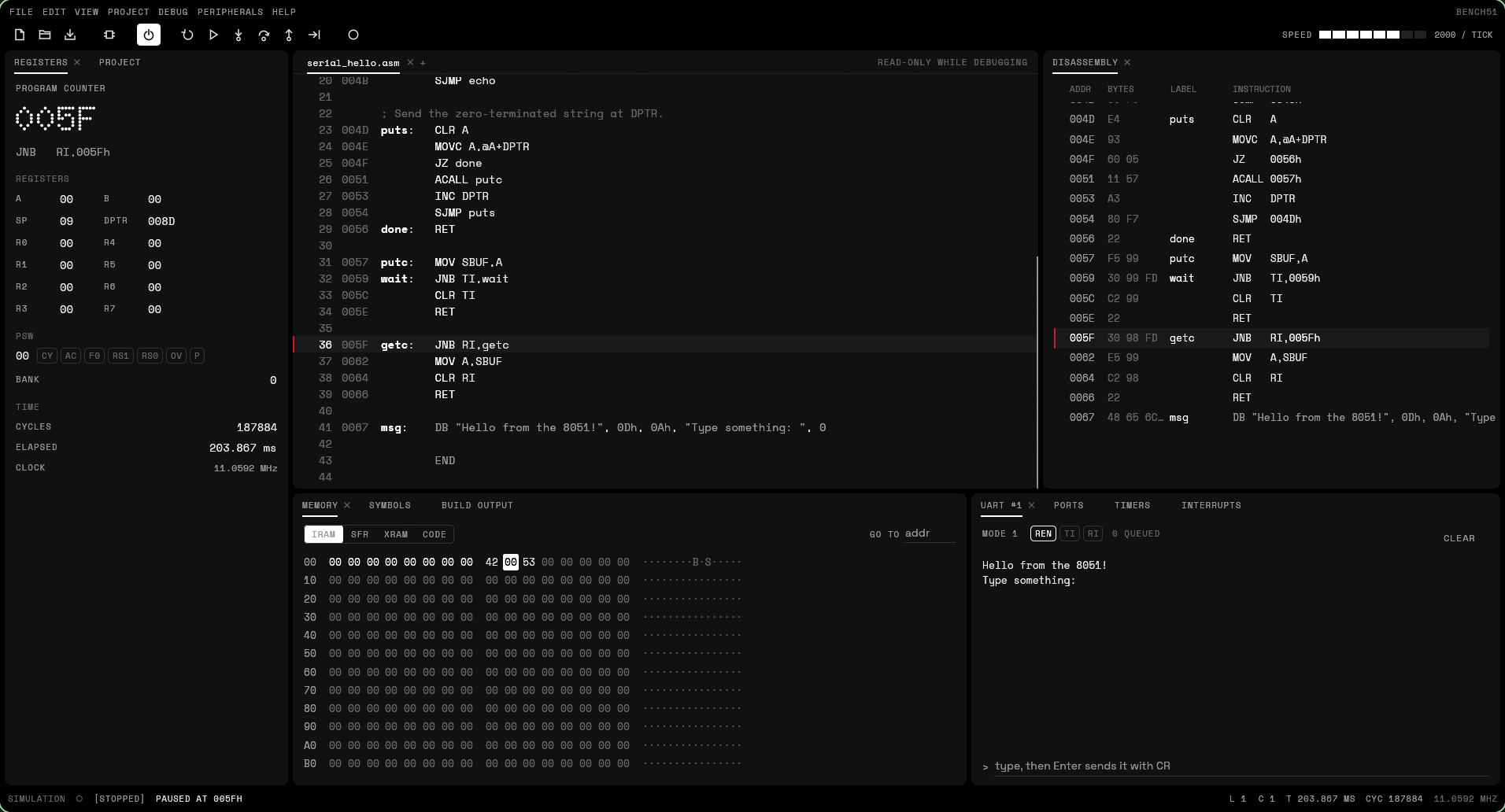
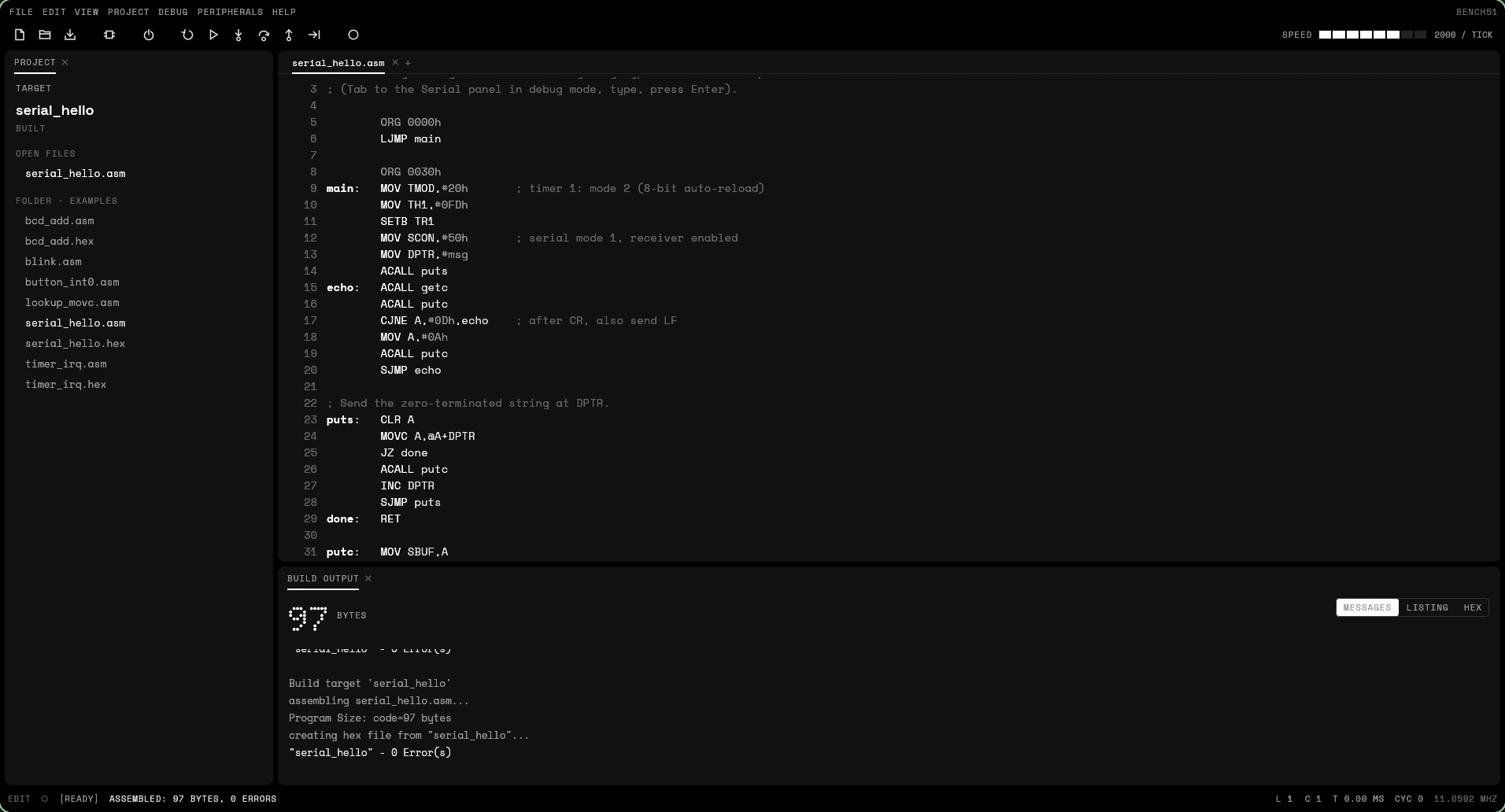 |
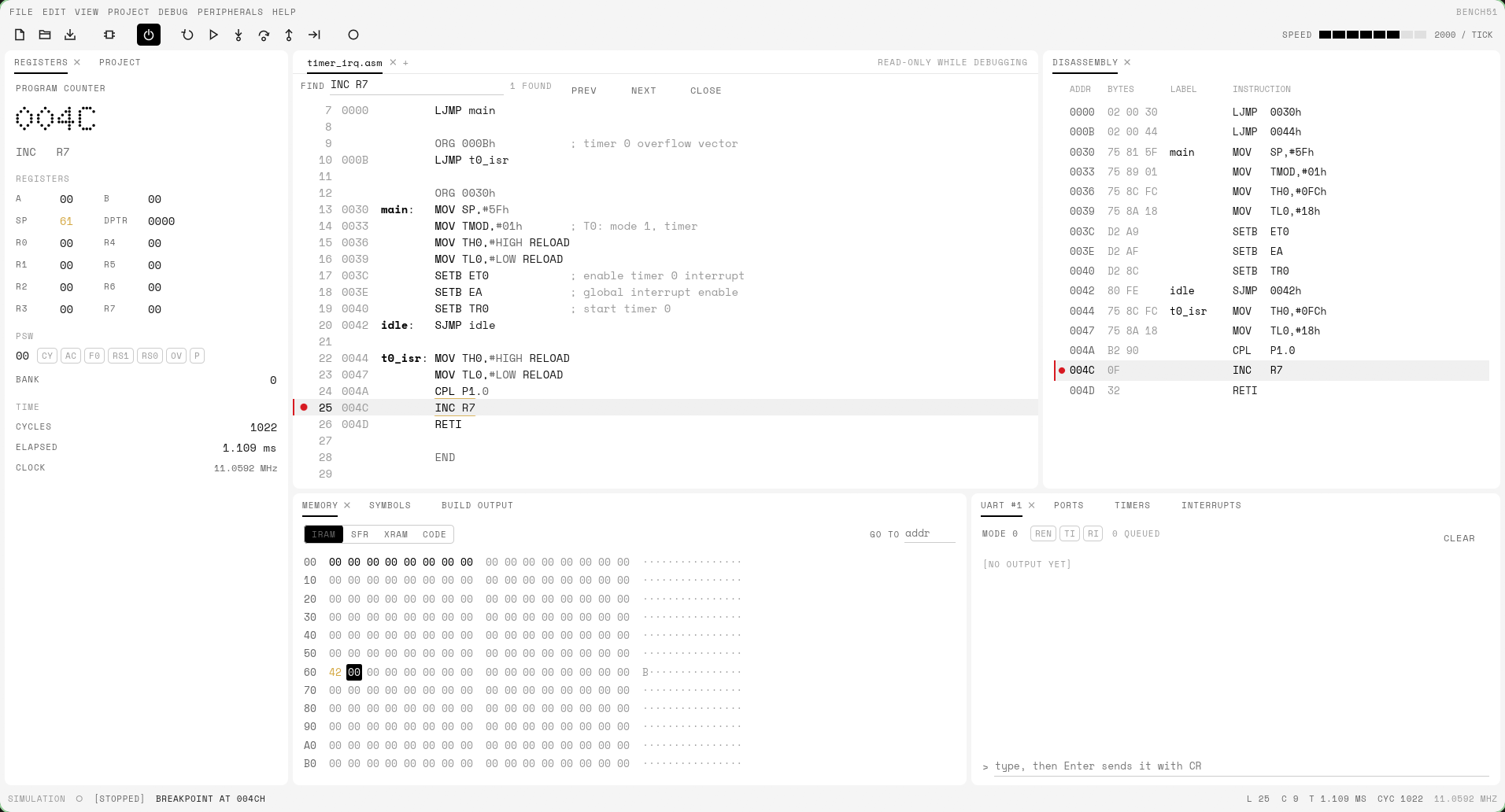 |
| Editor + build output | Breakpoint in a timer ISR, light theme |
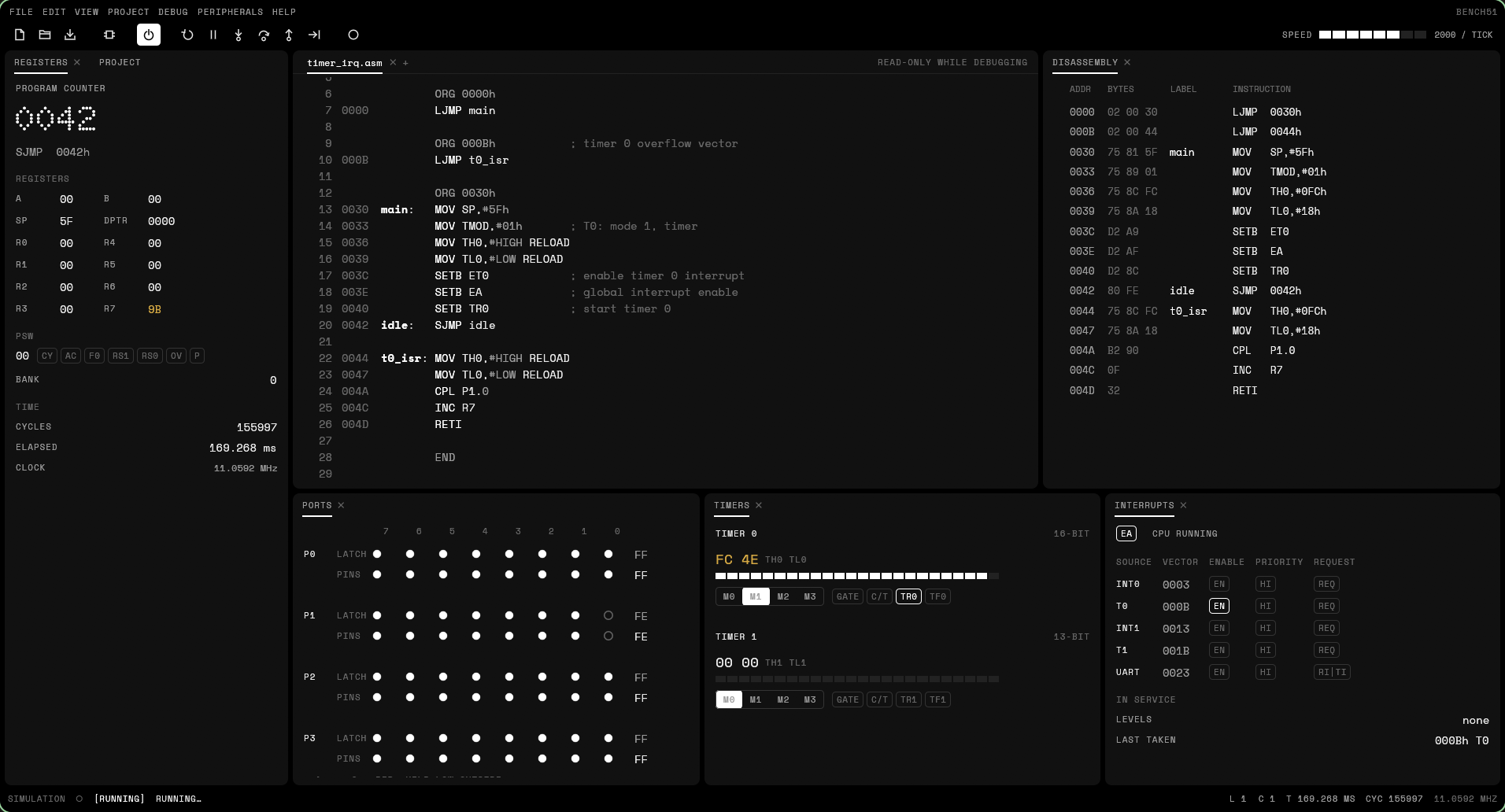 |
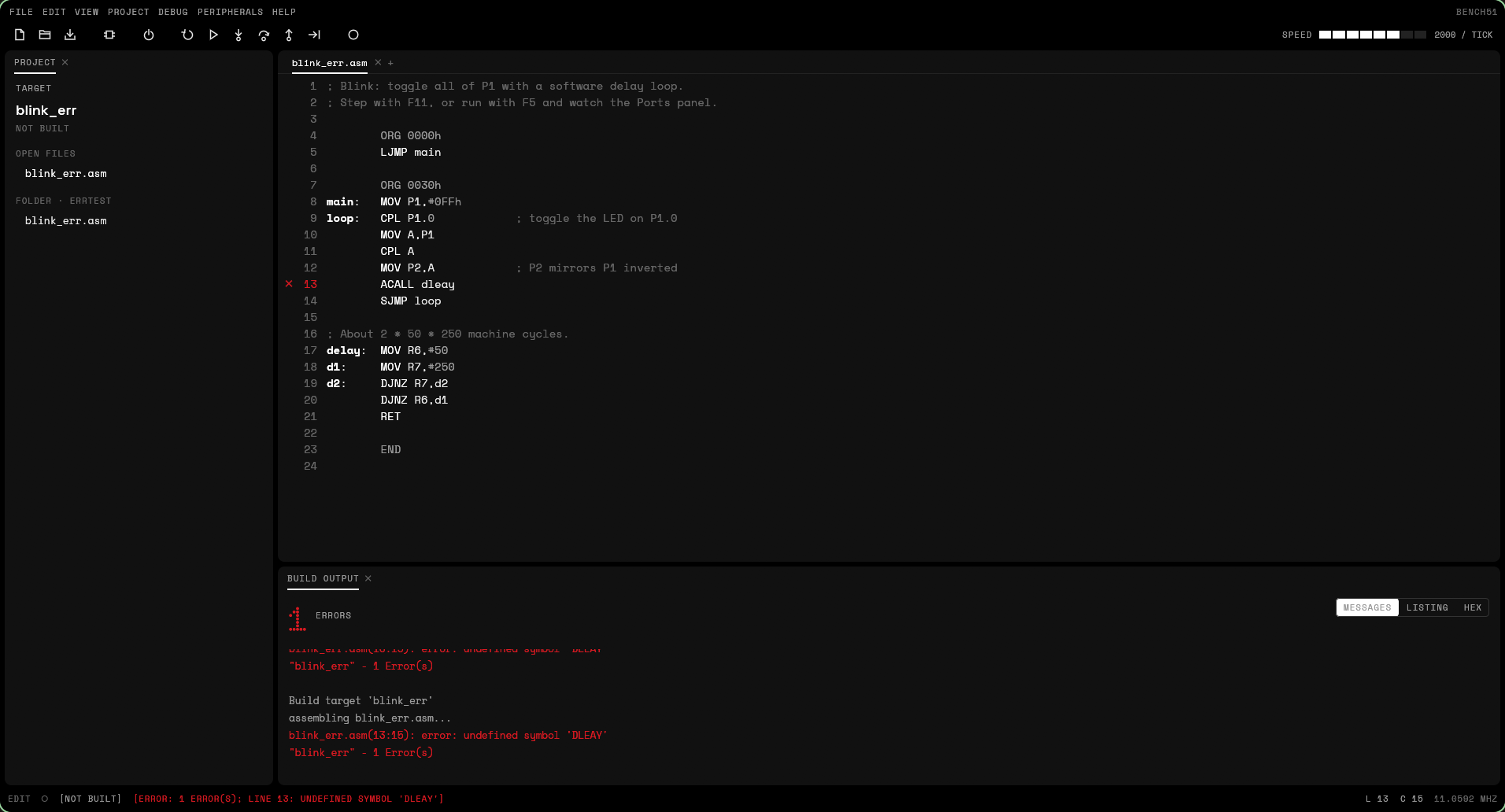 |
| Peripheral windows, rearranged | Assembler errors |
Why this exists
I had microcontroller practicals to get through, and the course expects you to use Keil µVision. Keil µVision doesn't run on Linux. Rather than fight with Wine or a Windows VM every lab session, I wrote my own: bench51 does the parts of µVision those practicals actually need (write the code, assemble it, look at the listing and HEX, step through it and watch the registers) natively on Linux, in a window or right in the terminal.
Features
- µVision layout: menus and toolbar, a Project window, the editor, Build Output, and in a debug session the Registers, Disassembly, Memory, Symbols, UART #1, Ports, Timers and Interrupts windows. Every window docks and tabs wherever you drag it; the edit and debug layouts are remembered separately, as in µVision.
- Editor with syntax highlighting, undo/redo, find, and breakpoint, error and PC markers in the gutter.
- Two-pass assembler for the full 8051 instruction set (all 255 opcodes):
- labels, expressions (
+ - * / MOD AND OR XOR NOT SHL SHR HIGH LOW,$) - number formats
42,2Ah,0x2A,101010b,52o,'*' - bit addressing (
P1.3,ACC.7,20h.0) and all predefined SFR/bit names - directives
ORG DB DW DS END EQU SET BIT DATA IDATA XDATA CODE CSEG AT - generic
JMP/CALL(assembled asLJMP/LCALL) - Keil-style
.lstlisting with symbol table, Intel HEX output
- labels, expressions (
- Simulator
- all instructions with correct flags (CY, AC, OV, P) and machine-cycle counts
- 4 register banks, 256 bytes IRAM, SFRs, 64K code, 64K XRAM
- ports P0–P3 with latch vs. pin semantics (read-modify-write reads the latch)
- timers 0/1 in modes 0–3, gate and counter inputs
- interrupts: INT0, T0, INT1, T1, serial; two priority levels; edge/level triggers
- UART in modes 0–3 with baud rate timing from timer 1
- idle and power-down modes (PCON)
- Debugger: run / pause, step into / over / out, run to cursor, breakpoints, changed-value highlighting, memory poke, adjustable speed.
- Open
.hexfiles: they're disassembled into editable source that re-assembles to the identical image. - Dark and light themes in a monochrome, dot-matrix design (Space Grotesk, Space Mono and Doto, bundled).
Install
Linux and macOS:
curl -fsSL https://raw.githubusercontent.com/krolyxon/bench51/master/install.sh | shWindows (PowerShell):
irm https://raw.githubusercontent.com/krolyxon/bench51/master/install.ps1 | iexBoth install bench51-gui and bench51 from the
latest release and
verify the download against its SHA-256 checksum:
- Linux and macOS: the binaries go into
~/.local/bin, and on Linux the app is added to your application menu. Options go aftersh -s --:--version v0.2.0pins a release,--dir /usr/local/binpicks another directory,--archive <file>installs a downloaded archive offline (handy on lab PCs), and--uninstallremoves it. - Windows: it installs to
%LOCALAPPDATA%\Programs\bench51, adds that to your PATH and adds a Start menu entry.-Uninstallremoves it.
Prebuilt binaries cover Linux (x86_64, aarch64), Windows (x86_64) and macOS (Apple silicon, Intel). To build from source instead, with a Rust toolchain:
cargo install --locked --git https://github.com/krolyxon/bench51 bench51-gui   # the desktop app
cargo install --locked --git https://github.com/krolyxon/bench51 bench51       # the terminal app
Usage
bench51-gui                          # welcome screen
bench51-gui examples/*.asm           # open several files
bench51-gui firmware.hex             # disassemble & debug a HEX file
bench51-gui --theme light
--theme system|dark|light overrides the theme chosen in View → Theme, and
--clock <MHz> the Xtal set in Project → Options for Target (default
11.0592), which is used for the elapsed-time display.
On Linux it runs on Wayland and X11 and uses the XDG desktop portal for file
dialogs. Building it from source on Debian or Ubuntu needs the packages egui
links against: libxcb-render0-dev libxcb-shape0-dev libxcb-xfixes0-dev libxkbcommon-dev libssl-dev.
Keys
The keys are µVision's, with the TUI's as aliases:
| Key | Action |
|---|---|
| F7 | build target (also writes .lst and .hex next to a saved file) |
| Ctrl-F5 / F4 | start / stop the debug session |
| F5 | run / stop |
| F11 / F10 | step into / step over |
| Ctrl-F11 / F12 | step out |
| Ctrl-F10 / F8 | run to the cursor line |
| F9 / Ctrl-Shift-F9 | toggle breakpoint / remove all breakpoints |
| F6 | reset the CPU |
| Ctrl-N / Ctrl-O / Ctrl-S / Ctrl-W | new / open / save / close |
| Ctrl-F | find |
| F1 | all shortcuts |
Click the gutter to toggle a breakpoint, double-click a byte in Memory to change it, click a pin in Ports to hold it low from outside, and click the bit chips in Registers, Timers and Interrupts to flip SFR bits. Files can be dropped onto the window.
Terminal version
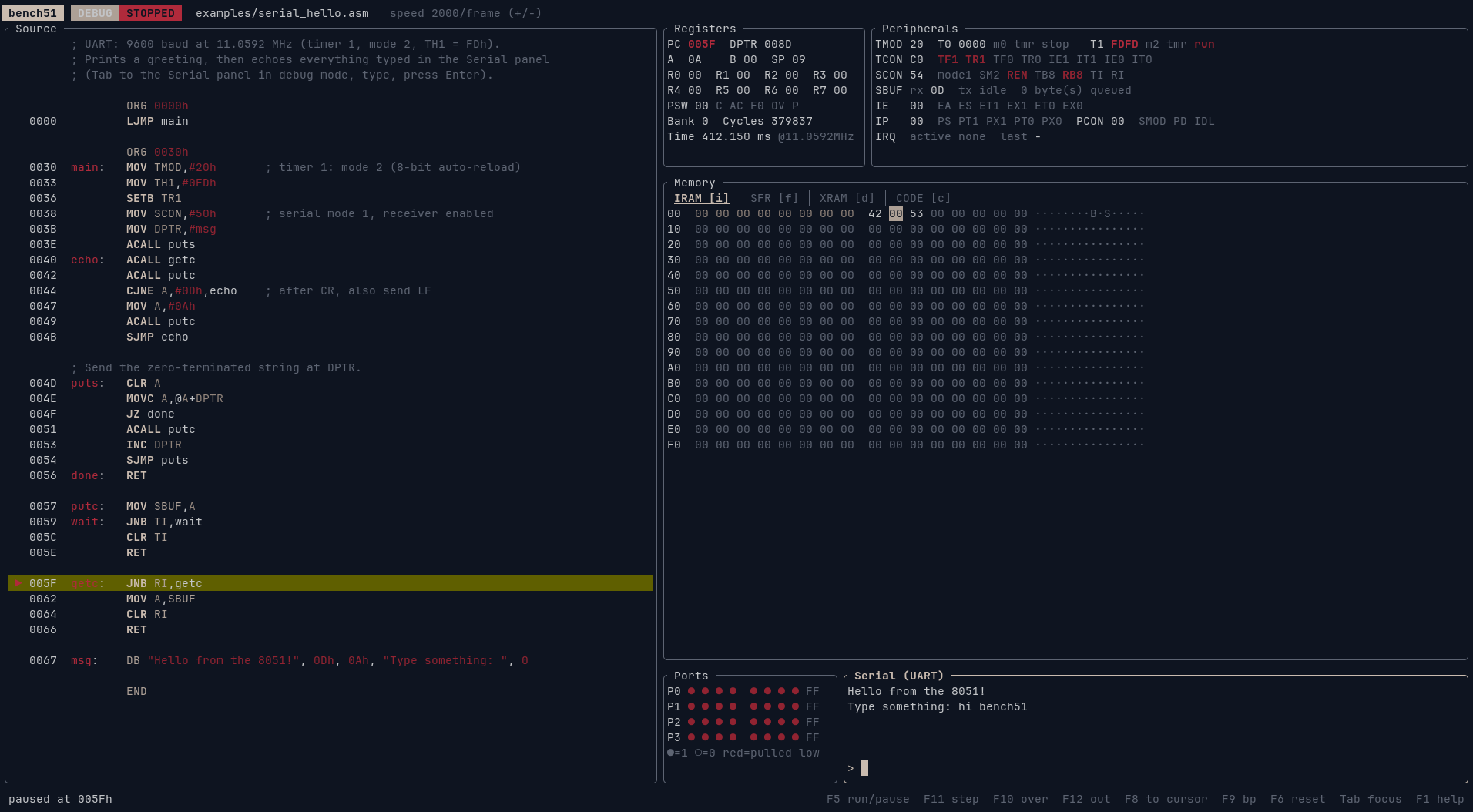
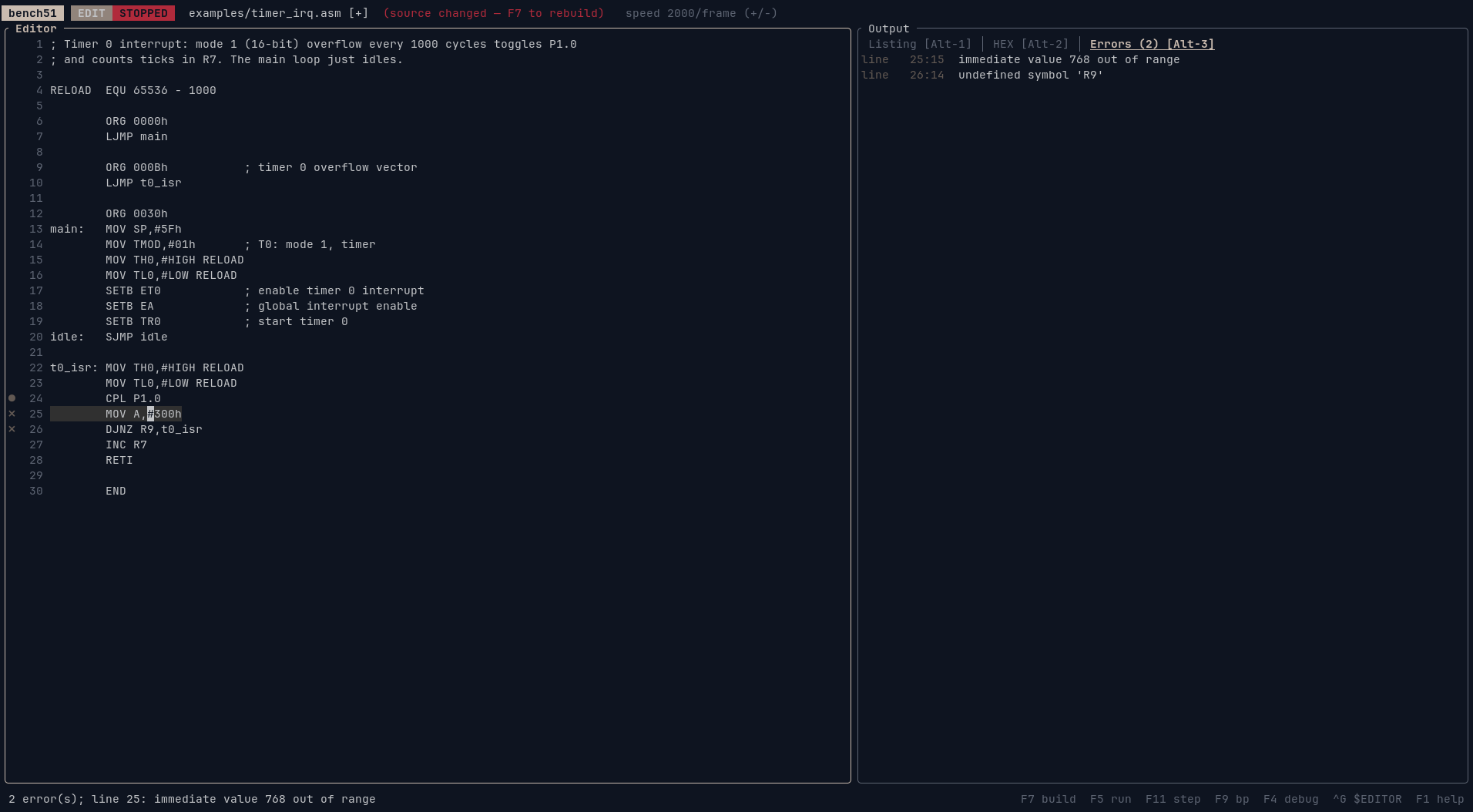
bench51 is the same IDE in a terminal, the way emacs -nw is Emacs
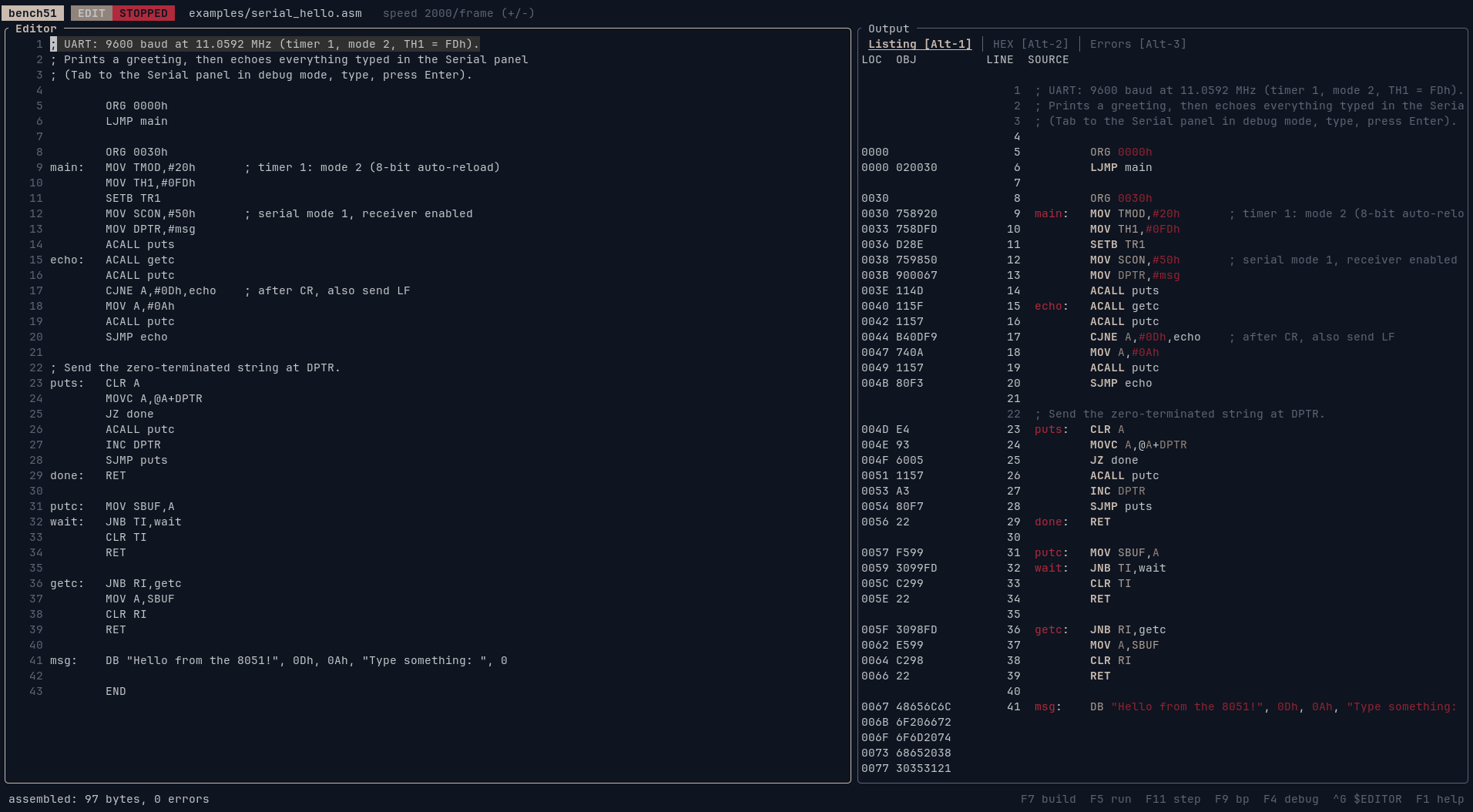
without a window. It has the editor, listing, HEX and error views, and a
debug screen with registers, peripherals, memory, ports and the UART. The
same binary also assembles headlessly, which is handy in scripts and
Makefiles.
 |
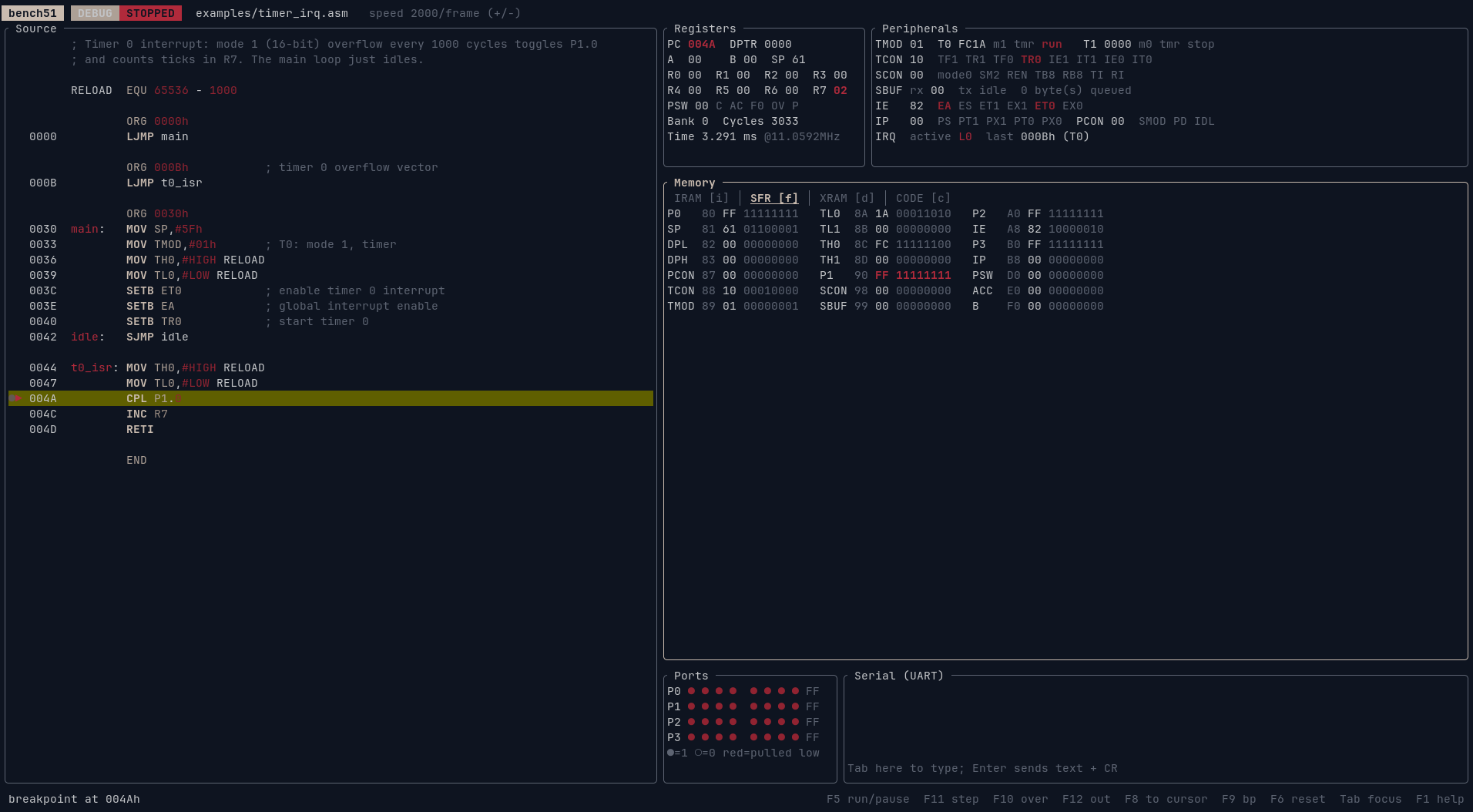 |
| Editor + assembled listing | Breakpoint inside a timer ISR, SFR view |
 |
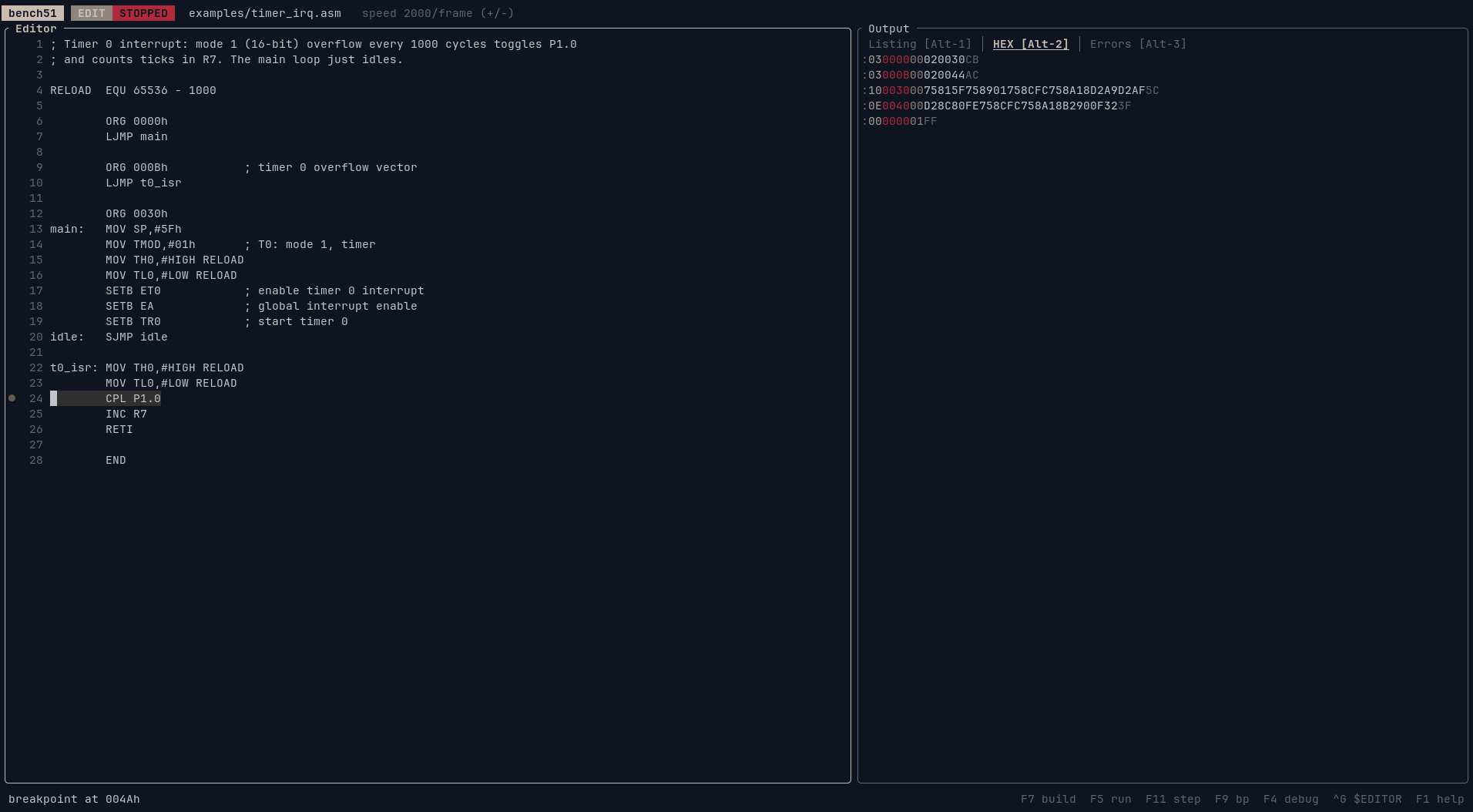 |
| Assembler errors in the gutter and Errors tab | Intel HEX output |
bench51 examples/serial_hello.asm     # open in the TUI
bench51                               # start with a template
bench51 firmware.hex                  # disassemble & debug a HEX file

# Headless assembly: writes prog.hex and prog.lst
bench51 --assemble prog.asm
bench51 --assemble prog.asm -o out.hex --lst out.lst
--clock <MHz> sets the oscillator frequency used for the elapsed-time display
(default 11.0592).
Terminal keys
| Key | Action |
|---|---|
| F1 | help |
| F2 / Ctrl-S | save (assembling a saved file also writes .lst and .hex next to it) |
| F3 / Ctrl-O | open .asm or .hex |
| Ctrl-G | edit in $EDITOR; on save & exit the buffer reloads and reassembles |
| F4 | switch Edit ⇄ Debug |
| F7 | assemble, reset and load |
| F5 | run / pause (assembles first if the source changed) |
| F11 / F10 / F12 | step into / step over / step out |
| F8 | run to cursor |
| F9 | toggle breakpoint on the cursor line |
| F6 | reset |
| Ctrl-Q | quit |
Edit mode: Alt-1/2/3 switch between Listing, HEX and Errors; Alt-↑/↓,
Alt-PgUp/PgDn scroll them. The editor uses Emacs-style keys
(Ctrl-U undo, Ctrl-R redo, Ctrl-Y paste), or press Ctrl-G to edit in
your own $EDITOR (vim, nvim, nano, …).
Debug mode: Tab cycles focus between Source, Memory, Ports and Serial.
Letter shortcuts work too, for terminals that swallow function keys:
r run/pause, s step, n step over, o step out, g run to cursor,
b breakpoint, x reset, i/f/d/c show IRAM/SFR/XRAM/CODE,
p poke memory, +/- speed, . jump to PC, Esc pause / back to editor.
- Ports: select a pin and press Space to pull it low from outside (a
button press); the program sees the pin as
latch AND external level. - Serial: type a line and press Enter to send it (followed by CR) to the 8051's receiver; everything the 8051 transmits appears above.
Examples
| File | Shows |
|---|---|
examples/blink.asm |
port toggling, delay loops, ACALL/RET |
examples/timer_irq.asm |
timer 0 mode 1 interrupt |
examples/serial_hello.asm |
UART setup, string output with MOVC, echo |
examples/button_int0.asm |
edge-triggered INT0, idle mode |
examples/bcd_add.asm |
ADDC and DA A with packed BCD |
examples/lookup_movc.asm |
7-segment table lookup |
Notes and limitations
- Indirect addressing reaches all 256 bytes of IRAM (8052-style upper 128).
- Serial input has no 9th data bit; in modes 2/3
RB8reads 0. - No 8052 timer 2, external code memory or on-chip peripherals of derivatives.
Development
cargo run --release -p bench51-gui     # the desktop app
cargo run --release -p bench51         # the terminal app
cargo test --workspace                 # assembler, CPU, peripheral, session and example-program tests
cargo clippy --workspace --all-targets
Releasing: bump version in Cargo.toml, add a section to
CHANGELOG.md, merge, then tag and push:
git tag v0.3.0 && git push origin v0.3.0The release workflow checks that the tag matches Cargo.toml and builds
every target. It publishes the archives and SHA256SUMS with that
changelog section as the release notes, then installs the result with the
one-liners on Linux, macOS and Windows.
Code layout:
crates/bench51-gui/is thebench51-guidesktop app (egui).src/is thebench51terminal app (ratatui), including headless assembly.crates/bench51-core/, shared by both:isa.rs(opcode table),asm/(assembler, listing, Intel HEX),sim/(CPU, peripherals, disassembler),session.rs(build, run, step and breakpoints),syntax.rs(highlighting tokens),files.rs(HEX loading)