rmptui


A fast, keyboard-driven MPD client for your terminal.
rmptui is a lightweight music player interface for Music Player Daemon (MPD). Browse your library, manage the play queue, work with playlists, and control playback without leaving the terminal.
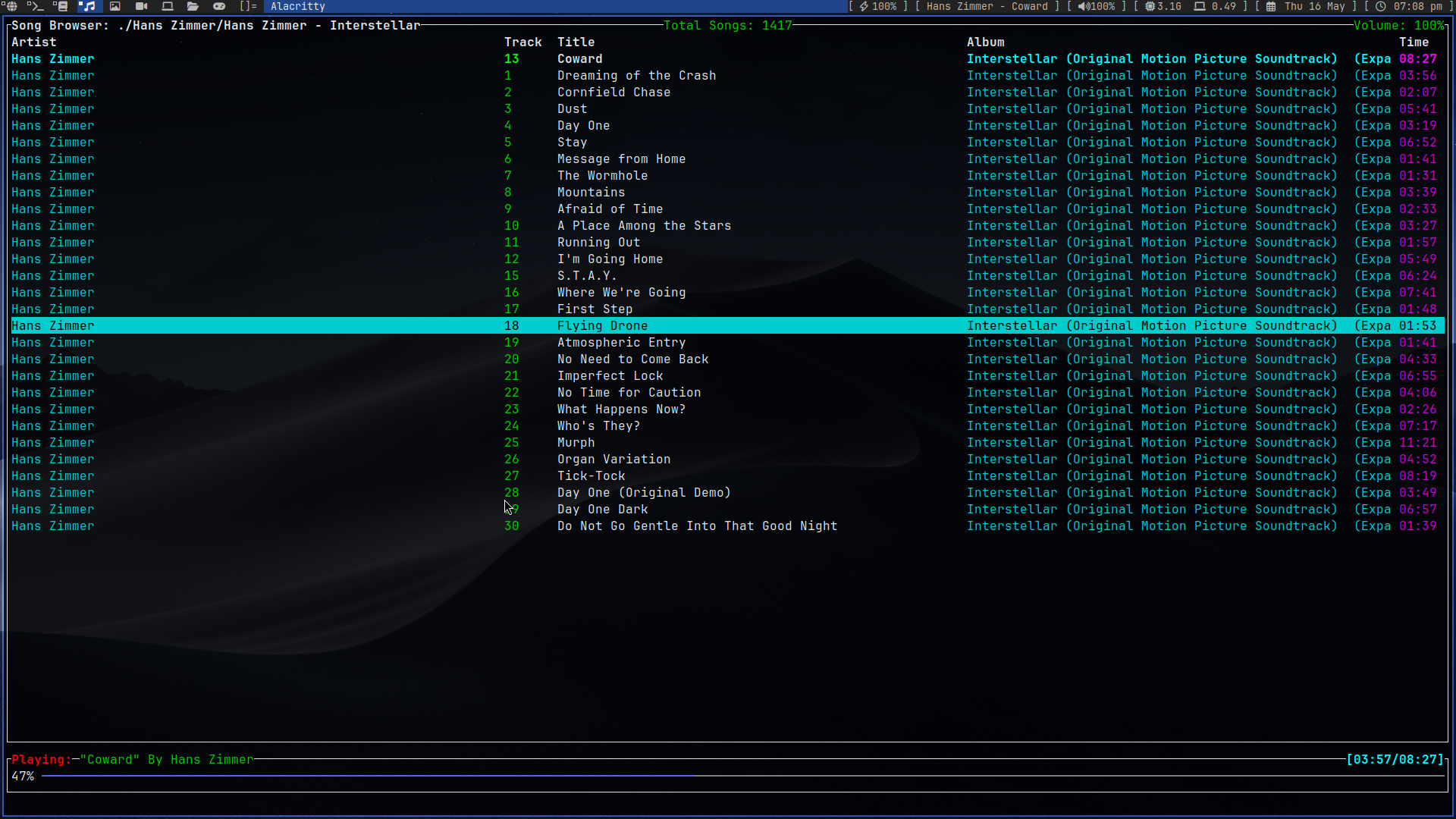
Highlights
- Three focused views: browse your music library, control the current queue, and inspect saved playlists.
- Metadata at a glance: see artist, track, title, album, and duration in the browser and queue.
- Fuzzy, repeatable search: search the current view with
/; in the song browser, keep the query and cycle matching folders and songs withnandN. - Playlist tools: load playlists, add selected tracks or folders to a playlist, create playlists, and rename them.
- Queue control: play, remove, reorder, and append tracks.
- Responsive MPD updates: the client uses MPD's asynchronous
idlenotifications instead of regularly polling the server. - Direct MPD connection: speaks MPD's standard text protocol over
asynchronous TCP; no
mpdcrate or WebSocket proxy is required.
Requirements
- A running MPD server with its music library configured.
- Rust and Cargo to build from source.
Install
From a local checkout, run the installer to build the release executable and
copy it to /usr/local/bin/rmptui:
./install.shThe script uses sudo for the system-directory operations when needed. It
requires Rust and Cargo to build from source. To use a different binary
directory or uninstall rmptui:
./install.sh --bin-dir "$HOME/.local/bin"
./install.sh --uninstall
Uninstall from a custom directory with
./install.sh --uninstall --bin-dir "$HOME/.local/bin". Run
./install.sh --help for usage.
Build from source
git clone https://github.com/krolyxon/rmptui.git
cd rmptui
cargo run --release
To build and run without installing, use cargo run --release.
On first launch, rmptui creates a default configuration file at
$CONFIG_HOME/rmptui/config.toml. If CONFIG_HOME is not set, it uses
$XDG_CONFIG_HOME/rmptui/config.toml, then ~/.config/rmptui/config.toml.
Edit the file and restart rmptui to apply changes:
[mpd]
host = "127.0.0.1"
port = 6600
password = "" # Set this only if your MPD server requires a password.

[playback]
seek_seconds = 2
volume_step = 2

[keybindings]
quit = ["q", "Ctrl+c"]
clear_queue = ["c", "C"]
toggle_pause = ["p"]
pause = ["s"]
toggle_repeat = ["r"]
toggle_random = ["z"]
open_playlist_menu = ["a"]
seek_forward = ["f"]
seek_backward = ["b"]
cycle_tabs = ["Tab"]
select_queue = ["1"]
select_browser = ["2"]
select_playlists = ["3"]
next_track = [">"]
previous_track = ["<"]
volume_up = ["=", "+"]
volume_down = ["-"]
toggle_mute = ["m"]
update_database = ["U"]
search = ["/"]
toggle_selected_item = ["Space"]
search_next = ["n"]
search_previous = ["N"]
move_down = ["j", "Down"]
move_up = ["k", "Up"]
activate = ["Enter", "l", "Right"]
go_back = ["h", "Left"]
go_to_top = ["g"]
go_to_bottom = ["G"]
queue_delete = ["d"]
queue_move_down = ["J"]
queue_move_up = ["K"]
playlist_rename = ["R"]
playlist_focus_contents = ["Right", "l"]
playlist_focus_list = ["Left", "h"]
playlist_delete_song = ["d"]
playlist_move_song_down = ["J"]
playlist_move_song_up = ["K"]
playlist_delete = ["D"]
playlist_load = ["Space", "Enter"]
popup_close = ["q", "Esc"]
popup_select = ["Enter"]
input_cancel = ["Esc"]
input_backspace = ["Backspace"]
input_cursor_left = ["Left"]
input_cursor_right = ["Right"]
input_submit = ["Enter"]
Every listed action is configurable in [keybindings]; each value is an array
so actions can have multiple aliases. Remove an alias or set an action to []
to disable it. A key can be a single character or a named key such as Enter,
Esc, Tab, Space, Up, Down, Left, Right, or Backspace. Add
modifiers with Ctrl+, Alt+, or Shift+, for example Ctrl+x or
Alt+Enter. Bindings are matched in the current UI context, so avoid assigning
the same key to different actions that can be active in the same context.
Characters typed into search and playlist-name fields remain text unless
configured as an input action.
playback.seek_seconds sets the seek_forward/seek_backward distance, and
playback.volume_step sets the volume_up/volume_down amount. Supported
audio formats remain built in. The config stores an MPD password as plain text;
newly created config files are restricted to the current user.
The MPD connection settings can also be overridden with environment variables:
| Variable | Default | Description |
|---|---|---|
MPD_HOST |
Config file | MPD hostname or address. Use password@host to set both host and password. |
MPD_PORT |
Config file | MPD port; an explicit port in MPD_HOST takes precedence. |
For example:
MPD_HOST=192.168.1.20 MPD_PORT=6600 ./target/release/rmptuiOr, for a password-protected local server:
MPD_HOST='secret@localhost' ./target/release/rmptuiControls
The keys below are the defaults; edit the [keybindings] table above to change
them.
Navigation
| Key | Action |
|---|---|
Tab |
Cycle between Queue, Browser, and Playlists |
1 / 2 / 3 |
Open Queue / Browser / Playlists |
j / Down |
Move selection down |
k / Up |
Move selection up |
g / G |
Jump to the top / bottom of the current list |
Enter / l / Right |
Activate the selected item |
h / Left |
Go to the parent directory in the browser |
q / Ctrl+C |
Quit |
Search
- Press
/and type a query. - In the browser, press
Enterto keep the query and return to the list. - Press
nfor the next fuzzy match orNfor the previous match. Results wrap around when you reach either end. - Press
/to start a new search, orEscto cancel search input.
Search matches the names shown in the current view. Browser search includes both folders and songs.
Playback and queue
| Key | Action |
|---|---|
p |
Toggle play/pause |
s |
Pause |
> / < |
Play next / previous track |
f / b |
Seek forward / backward by two seconds |
+ / = / - |
Increase / decrease volume |
m |
Toggle mute |
r / z |
Toggle repeat / random |
d |
Remove the selected queue item |
Space |
Remove a queue item; toggle a browser song in the queue |
J / K |
Move the selected queue item down / up |
c |
Clear the queue |
a |
Open the add-to-playlist menu |
U |
Rescan the MPD music database |
Playlists
The Playlists view has a playlist pane and a contents pane. Select a playlist
with j/k and press Space or Enter to load it into the queue and start
playback. Press Right or l to focus its songs and Left or h to return
to the playlist pane. In the contents pane, j/k selects a song, Enter
plays it, d removes it from the saved playlist, and J/K moves it
down/up. D deletes the selected saved playlist. R renames a playlist.
Press a to open the add-to-playlist menu; choose Current Playlist, New
Playlist, or a saved playlist. When creating a playlist, type its name and
press Enter to save. Playlist contents update after each edit.
License
rmptui is distributed under the GNU Affero General Public License v3.0.